
Get the full app experience without visiting the app store. Add OnDeck to your phone and use it just like an app for instant, full-screen access to tournament schedules and info—no download required. Please see the info below--it should take no more than 30 seconds to set up.
Jump to your device:
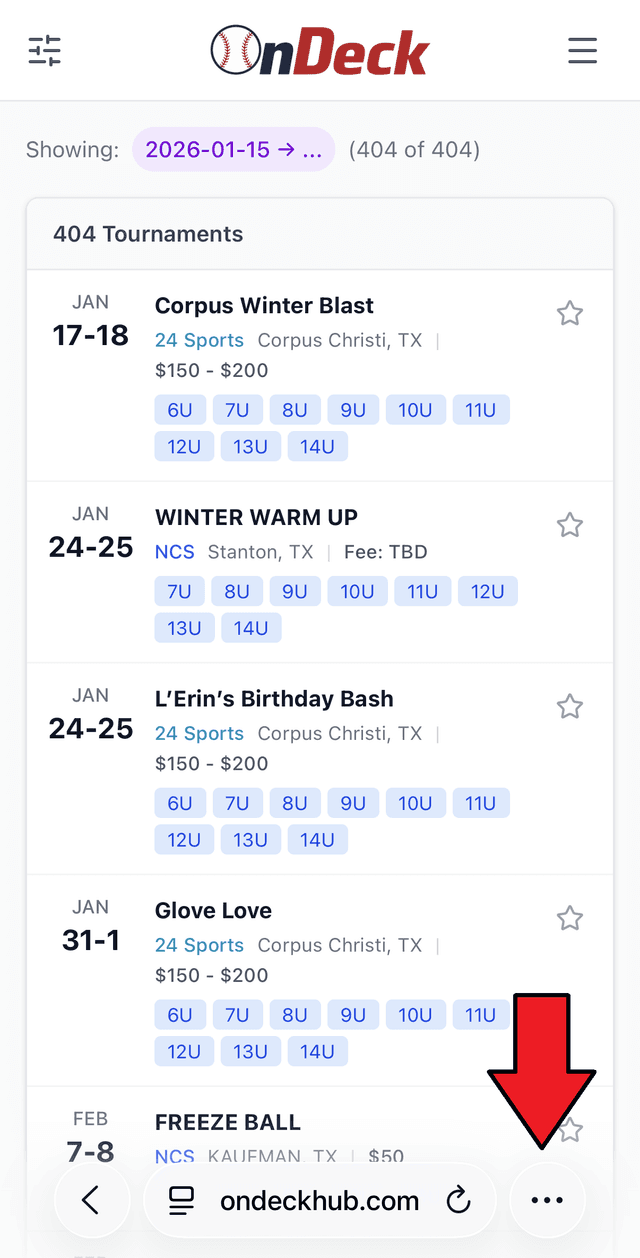
1. Open Safari, go to our website (https://ondeckhub.com), and tap the 3 dots at the bottom of the screen to bring up the menu
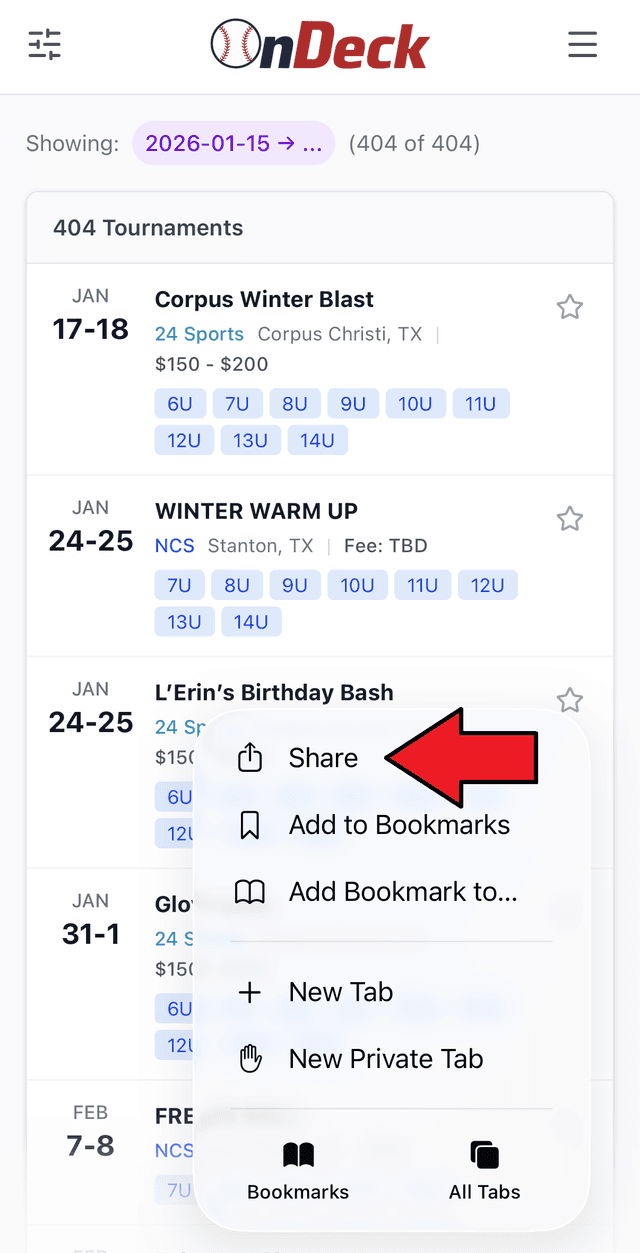
2. Tap 'Share'
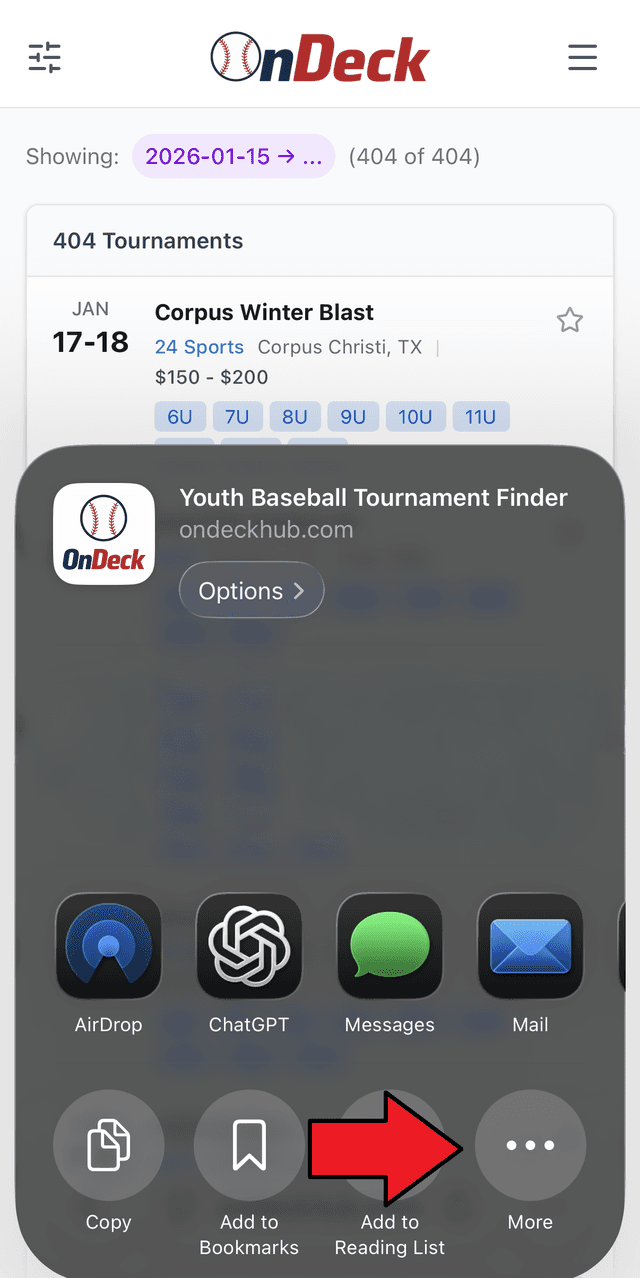
3. Tap 'More' (if necessary)
4. Scroll down and tap 'Add to Home Screen'

5. Tap 'Add' in the top right corner

6. That's it! You should see the OnDeck icon on your phone screen. You can either leave it where it is or move it wherever you'd like.
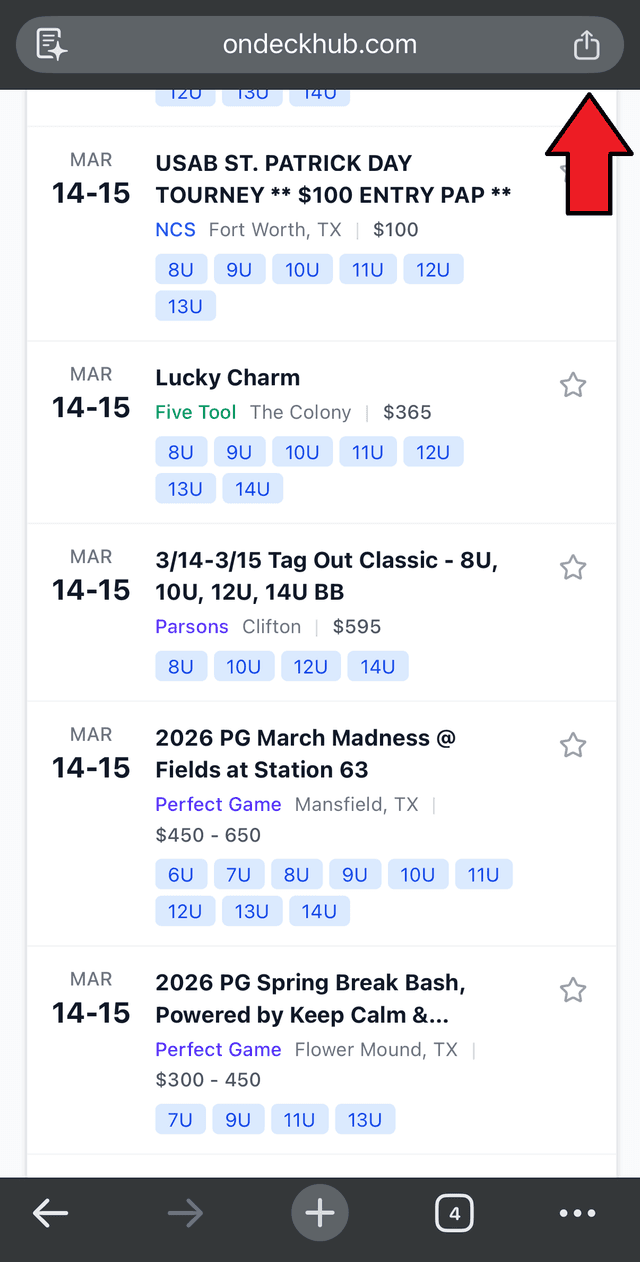
1. Open Chrome, go to our website (https://ondeckhub.com), and tap share icon in the upper right corner to bring up the menu
2. Tap 'More'
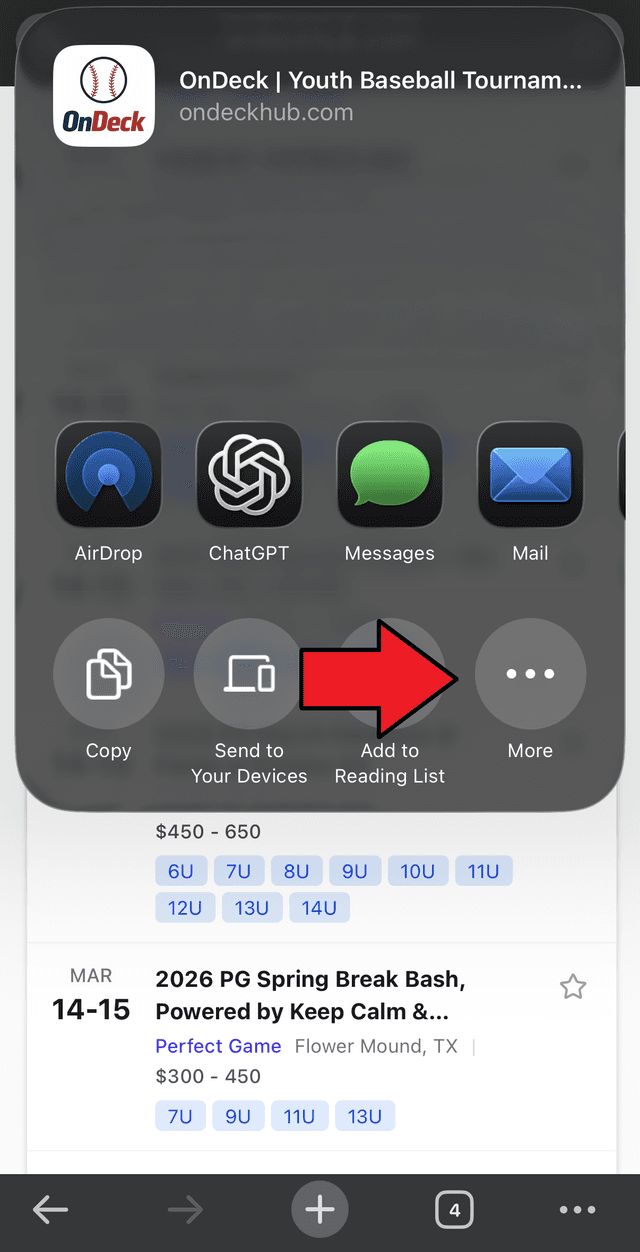
3. Scroll down and tap 'Add to Home Screen'
4. Tap 'Add'
5. That's it! You should see the OnDeck icon on your phone screen. You can either leave it where it is or move it wherever you'd like.
Works on most Android devices.
1. Open Chrome and go to our website (https://ondeckhub.com)
2. Tap the Three Dots menu icon in the top right corner
3. Tap 'Install App' or 'Add to Home Screen'
4. Follow the prompt to install